

Overview: Microsoft Outlook stores all its data in the PST file format. However, managing multiple PST files is a challenging task, especially when combining data or migrating to a new system. This article provides you with solutions to add multiple PST files to Outlook at a time.
MS Outlook creates an Outlook file that stores all data, including emails, contacts, tasks, notes, calendars, journals, etc., with attachments. The Outlook data file is named PST. An Outlook user may have one or more Outlook data files. There are no restrictions on creating or adding PST files to Outlook.
Find the need to add PST files to MS Outlook
- To access old mailbox content
- To merge accounts or to archive data
- To maintain access to existing data
Also read: How to Merge Multiple Outlook Files into One File
Can We Import Multiple PST files to Outlook?
Yes, one can easily add multiple PST files to Outlook. Using the built-in import/export wizard of Outlook, you can easily accomplish this task. However, users from a technical background can go for PowerShell Scripts to synchronize multiple files to Outlook. To know both solutions in detail, read the upcoming sections of this post.
How to Import/Add Multiple PST files in Outlook?
Using the Import/Export Feature of Outlook:
Here, we will first learn the steps using the Import/Export wizard to import multiple Outlook data files:
- Start Outlook on your system
- Open the File tab and then click on Open & Export
- Hit on Import/Export
- Then, pick the import from another file or program option
- Choose the Outlook file (.pst) and hit the Next button.
- Use the Browse button to add a PST file to import.
- Finally, mention the destination path of the imported PST file in Outlook and press the Finish button.
To synchronize multiple PST files into Outlook, use the same steps.
Using PowerShell Script:
Below is the script that you can use to import multiple PST files to Outlook at once.
#Set the folder having PST files$pstFolderPath = “C:\Path\To\PST_Files’’#Create an Outlook app object$Outlook=New-Object-ComObject Outlook.application$namespace = $Outlook.GetNamespace (“MAPI”)#Get all PST files from the folder$PSTfiles = Get ChildItem- Path $pstfolderpath -Filter.pst#Loop through each file and add to OutlookForeach ($pst in $pstfiles) {$fullpath = $pst.fullnameTry {$namespace .AddStore ($fullpath)Write-host “Added PST: $ ($pst.name)’’} catch {Write-Host “Failed to add PST: $($pst.Name)- Error: $_”}}# Done!Write-Host “ nAll done!’’
Phase 1: Save this script as .ps1 file
- First, you have to paste this script into your Notepad to import multiple PST files to Outlook at once.
- Now, visit the File tab and go with the Save As option
- Next, type Add-PSTs.ps1 in the file name
- Then, go for Save as Type as All Files (*.*)
- Set the location and press the Save button
Phase 2. Run the script in PowerShell
- Look for Windows PowerShell in the Windows search bar
- Pick Run as administrator
- Use the cd command to open the file location where you have saved .ps1
- Now, run the script by typing “.\Add-PSTs.ps1”
Demerits of the above-discussed free methods
- The above solutions are very time-consuming to add multiple PST files
- Users with basic knowledge can’t understand the PowerShell method as it is highly technical, and users need proper technical skills for it.
- You can filter data to import to Outlook with these manual methods.
Smart Way to Import/Add Multiple PST files to Outlook
Users who don’t find manual workarounds fit for them can go for professional solutions like DataVare Outlook PST Merge Software. This is an advanced and efficient way to import multiple PST files to Outlook. This program smoothly imports the desired content of data files to Outlook without any hassle. You can freely add multiple files at once with this application.
Working Guide to use the software to import multiple PST files to Outlook at a time:
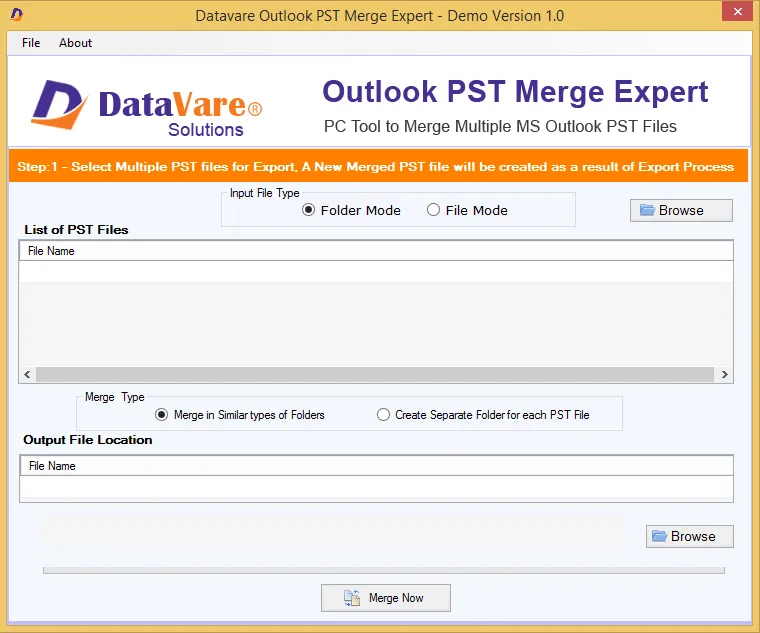
- Launch the recommended professional tool on your system.
- Pick one option – File or Folder, and then browse the required PST files.
- Pick the merge type option.
- Now, mention the preferred location to save the resultant PST file.
- In the end, place the mouse cursor on the ‘Merge Now’ button to complete the process.
Finally, open this PST file in Outlook using the import/export feature.
Conclusion
The above post discusses multiple ways to import multiple data files to Outlook. We have described two manual ways and a professional tool to complete this task. Depending on the requirements, users can go for a suitable solution. However, the manual techniques need technical expertise and enough time to accomplish this task. So, the best way to import multiple PST file data to Outlook at once is the discussed automated program. It flawlessly imports various PST files to any edition of MS Outlook, like 2021, 2019, 2016, 2013, 2010, etc.
Common Queries of Users
Ques: Can I import PST mailbox data to Outlook without any loss?
Ans: Yes, you can safely import PST mailbox items to Outlook without any data loss with the methods mentioned above. For instant and safe outcomes, you should go for the professional program.
Ques: Does the expert tool support adding ANSI PST files?
Ans: Yes, the expert tool can add both ANSI and Unicode Outlook data files.
Ques: Is it necessary to install Outlook to use the automated solution?
Ans: No, to combine PST files using the automated program, there is no need to install Outlook. However, to open the resultant PST file, you need an Outlook installation.
Related Source: Use Network Upload to Import Outlook Files