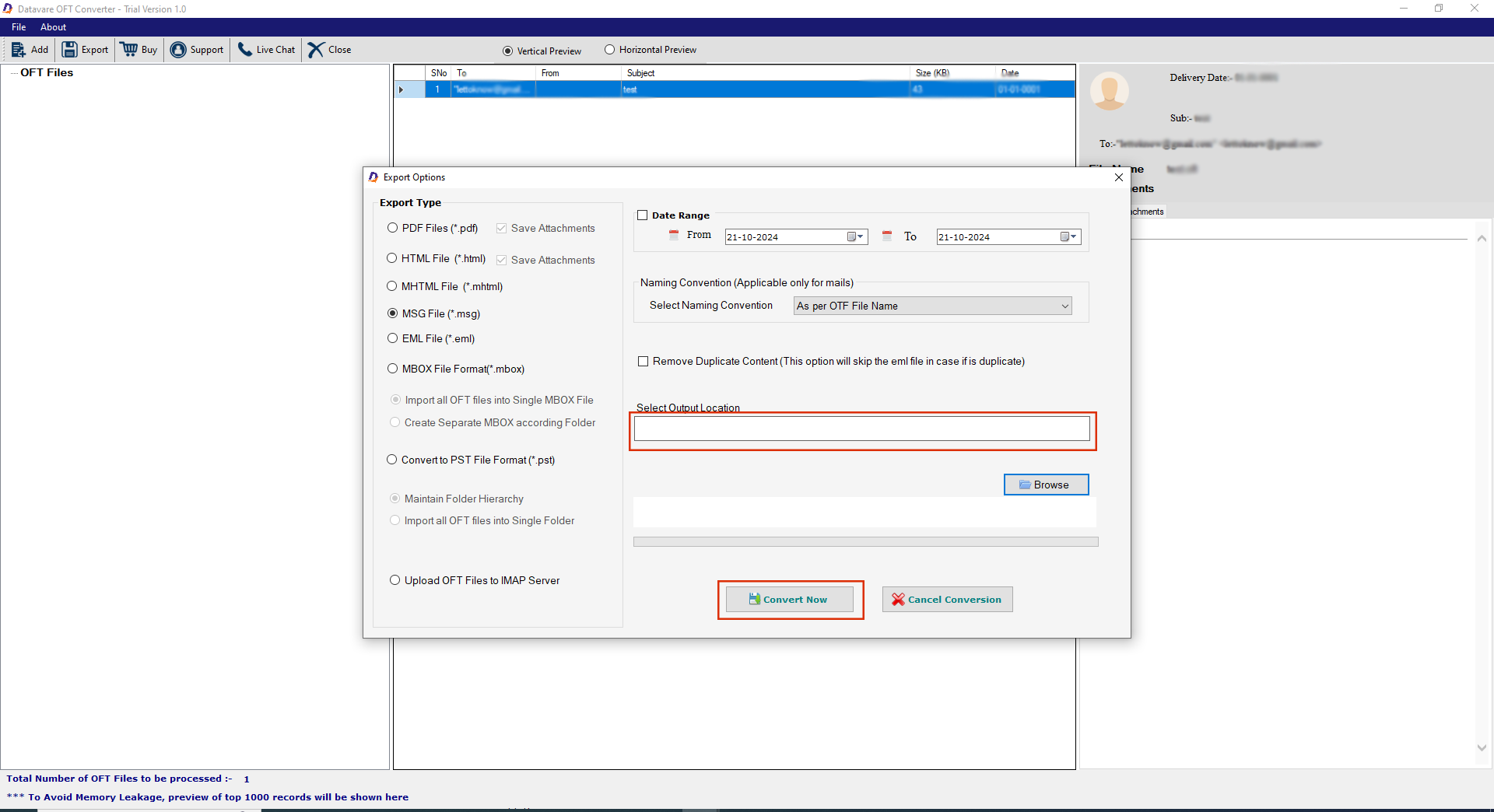
Launch the Tool and Upload OFT Files
- Download and start the application on your system
- First click either “File” or “Folder” mode and then “Browse” button
- Select locally saved OFT files or folders containing the target OFT files.
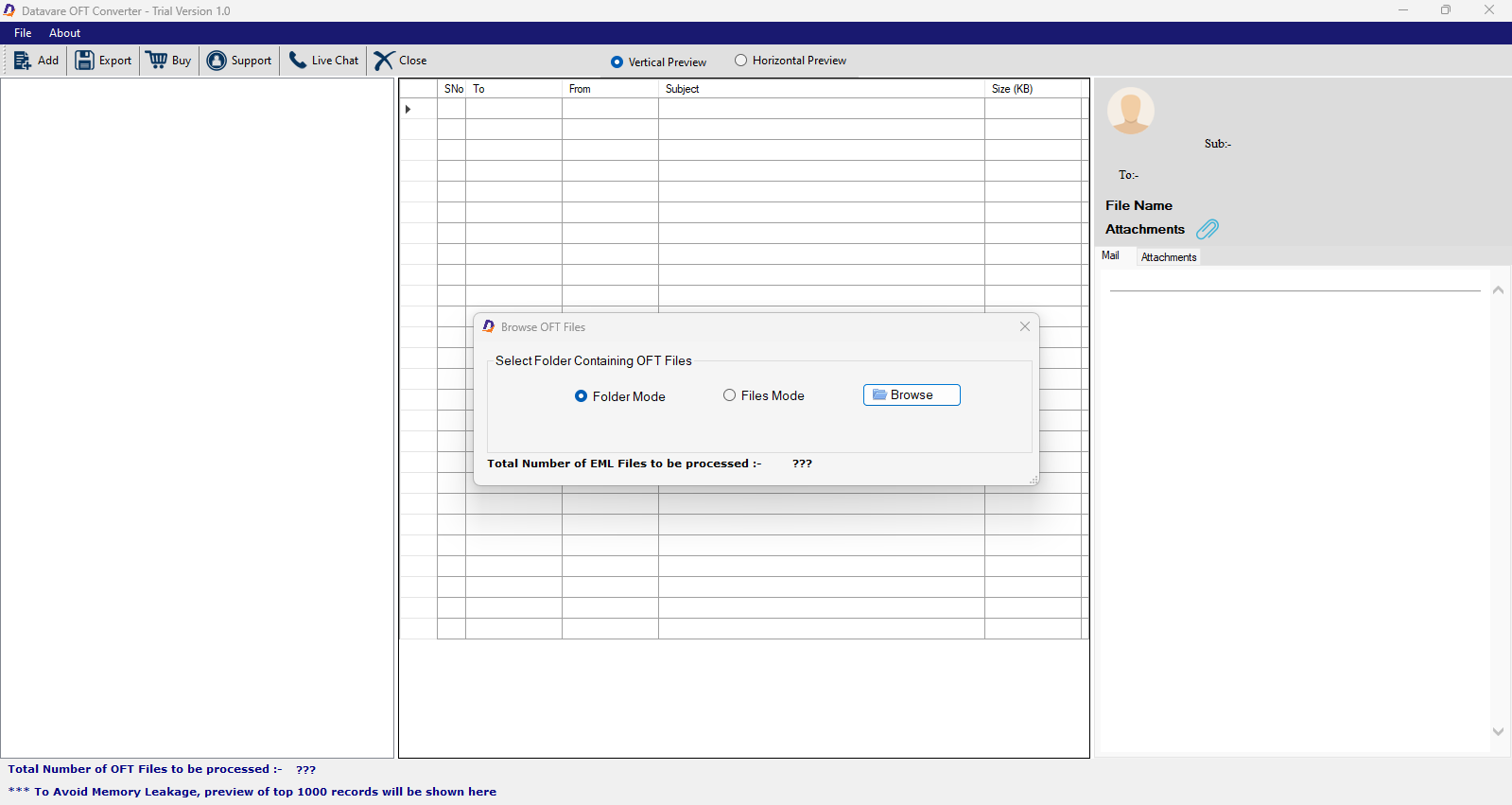

Get a Preview of Uploaded Data
- Instantly get a preview of the uploaded data in the preview pane
- The tool automatically displays data in Vertical mode.
- To get a preview in the “Horizontal mode” select “Horizontal Preview” from the menu.
- Click on the file that you want to view
- Select the items you want to get a detailed preview
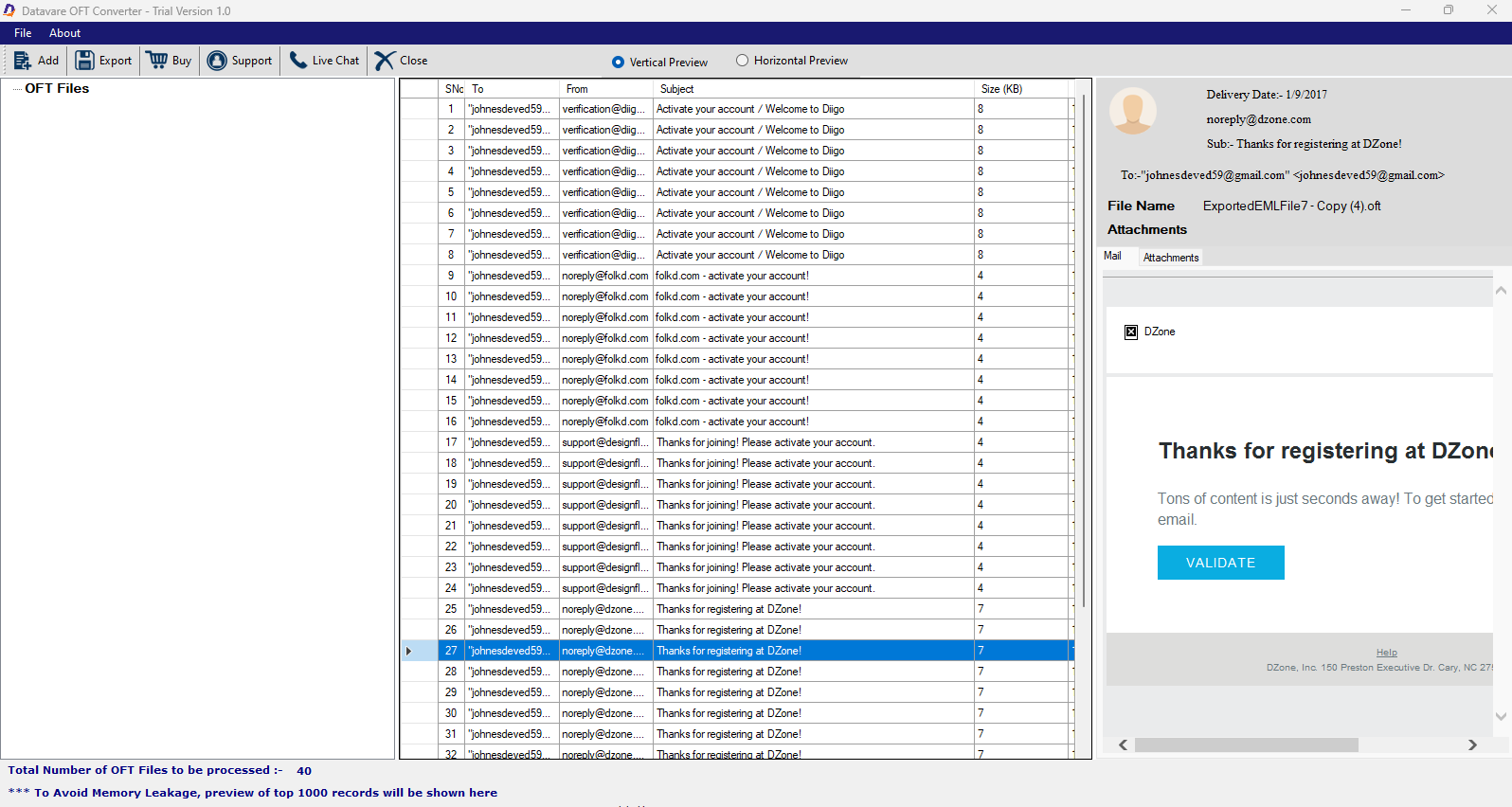
Export to MSG
- Click “Export” to open the “Export Options” window
- Tap the “MSG File” option
- Check date range and manually enter the date range
- In the select naming convention box, click “Arrow” to choose the desired file name format.
- Check “Remove Duplicate Content” if you want
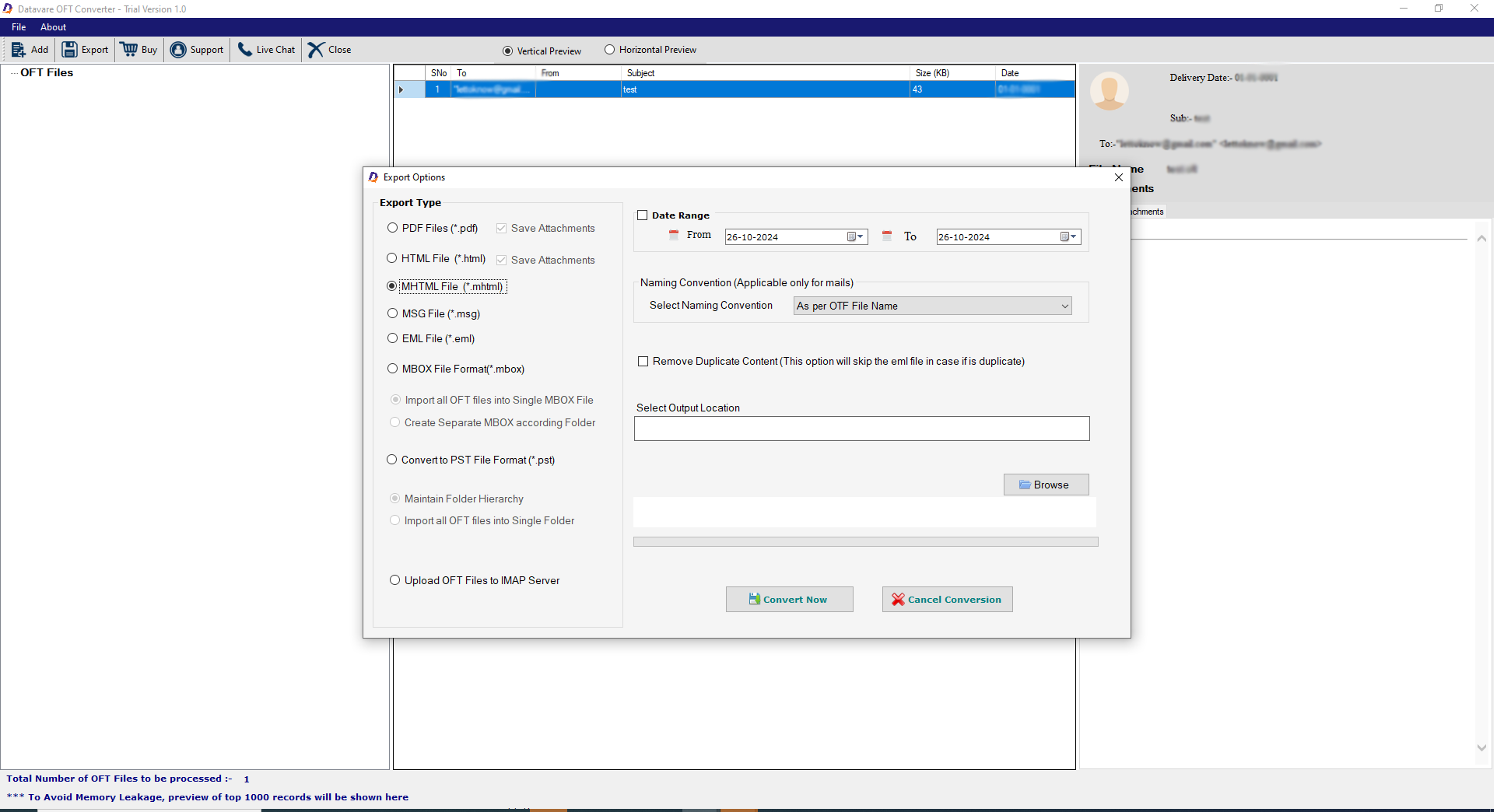
Final Step
- Press “Browse” to choose a local folder to direct the tool to save exported data in the particular folder
- Finally, press “Convert Now” tab to finish the step.